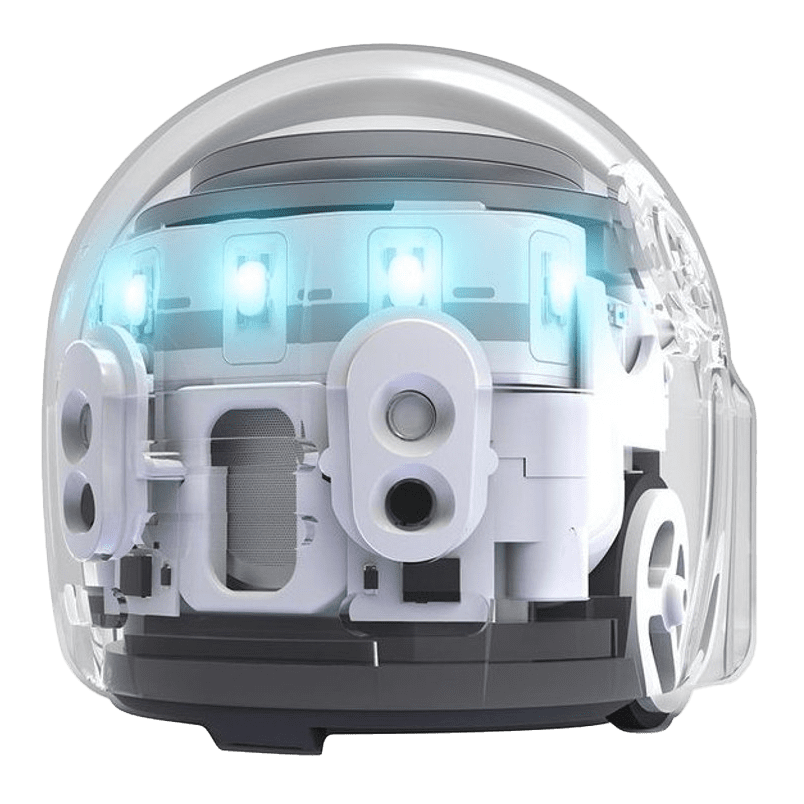
A tiny robot with big ideas. Meet Ozobot Evo, a pocket-sized programmable robot that turns imagination into motion. Draw a line, add a colour code, and watch Evo follow your instructions. Start with simple commands on paper, then level up with creative coding challenges and STEM activities that grow alongside your skills.
Whether you’re just beginning to explore coding or ready for more advanced programming, Ozobot Evo makes learning interactive, hands-on, and fun.
Recommended for ages 5 and up.
Using the Ozobot Evo Starter Kit
The Ozobot Evo supports early coding development by combining tactile learning with digital programming tools. Learners can experiment, test outcomes, revise their approach, and build confidence through iteration.
Evo operates in four modes — Explore, Create, Connect, and Program — allowing users to move from guided interaction to independent coding challenges.
This kit is ideal for introducing core computer science concepts in an approachable, hands-on format.
Getting Started
Charging the Ozobot Evo
Evo arrives partially charged. For maximum playtime, charge fully before use.
Plug the USB cable into Evo’s Micro USB port.
Plug the other end into any USB port or power adapter.
Evo’s lights will turn solid green when fully charged.
If a red light flashes on Evo’s back, it is time to recharge.
Power On and Off
Press and quickly release Evo’s power button to turn it on. Evo will light up and begin interacting right away.
Press and quickly release the power button again to turn Evo off.
Calibrate
Place the Ozobot Evo on a flat surface.
Press and hold the power button for two seconds until the top light blinks white, then release.
Evo will spin and blink green when calibration is successful. If it blinks red, repeat the steps.
Two Ways to Code
Screen-Free with Colour Codes
Draw lines and colour codes with markers. Evo will follow the path and carry out your commands. This is a simple way to start learning coding concepts without a screen.
Online with the OzoBlockly Editor
Using a computer or smart device, OzoBlockly allows you to drag and drop blocks of code to control Evo’s movements and behaviours. It is a powerful way to expand your programming skills.
The Learning Behind the Play
Early exposure to coding builds more than technical skills. It strengthens problem-solving, resilience, and analytical thinking. By experimenting with Ozobot Evo, learners practice planning, testing, debugging, and refining their ideas — essential skills across all areas of STEM learning.
Expert Zone
Looking for a more advanced experience? Download the free Evo app for your tablet.
For Apple iOS iPads
For Android tablets
Additional Resources
Ozobot Training Videos
Helpful step-by-step videos to guide you through setup and play.
Introducing Ozobots
A video overview covering Evo’s basic features and operations.
OzoBlockly
Create programs and watch Ozobot follow your commands.
Ozobot Colour Codes
Learn how to code without a screen using colour patterns.
At-Home Activities for Ozobot Evo
Ozobot Challenges
Coding and computer science challenges for learning with bots — or even without them.
Did you make something awesome using this kit?
Share your creation/photo with us on social media. Remember to use #ORLMakes so everyone can appreciate, learn, and marvel at your invention.

Tell us what you thought!
We want to know all about your experience using this Library of Things kit at home. Please take a few minutes to complete this brief survey.
Lending Policy
- This kit can be borrowed for 2 weeks.
- 1 renewal if no one else is waiting for the item.
- The borrower is responsible for lost, missing, and damaged pieces (see content list with prices included with kit).
- Before returning, please ensure all items are clean and in good condition.
- Return the kit to a staff member at the front desk of your nearest ORL location. Do not use the book drop or leave them outside the library.
- BC One Card patrons: Library of Things kits must be checked out and returned to one of the Okanagan Regional Library branches.